The iPhone and iPad version of Shadowrocket costs $2.99 as a one-time App Store purchase. The Mac (Apple silicon and Intel), Windows, Android, and Linux versions are free. This guide covers first-time purchases, installation after payment, and redownloading on a replacement device. Follow the steps in order: check your device and account, verify the app, complete payment, and confirm installation. Buying the app does not include a service plan; you’ll need to import your own configuration after installation.
1. Know which devices and purchases this guide covers
The App Store purchase steps in this guide are for iPhone and iPad. For other devices, visit the site’s download guide and choose an installation option for Mac, Windows, Android, or Linux. For Mac, select the version for Apple silicon or Intel. Don’t use compatibility details on the iPhone product page to choose a desktop installer.
The iPhone and iPad version costs $2.99 as a one-time App Store purchase. The Mac (Apple silicon and Intel), Windows, Android, and Linux versions are free. App Store prices may appear in your local currency depending on your region. Review the system’s confirmation screen before paying. For iPhone and iPad system requirements, refer to the App Store listing.
- Getting the app: Purchasing or installing Shadowrocket does not provide a service configuration you can connect to.
- Connection configuration: You must have and verify your own configuration, including the server address, port, protocol parameters, or subscription link.
- Purchase history: Purchases are tied to the App Store account used to buy the app. Before changing devices, make sure you can access that account.
- What this guide covers: We don’t provide, sell, or recommend nodes, subscriptions, or connection services. This guide explains how to use a configuration you already have.
2. Search for the app and verify its name, developer, and app ID
In the App Store search field, enter the full app name Shadowrocket and open its product page. Don’t identify the app by search terms, icon color, or its position in the results alone. Verify the name and developer, and check the app ID in the product link.
The official icon shows a blue-purple outlined rocket on a white background. The image below is for icon identification only; verify the product page details as well. Search results can vary by your account’s store region and device compatibility. If you can’t find the app, don’t assume a similarly named product is the same app.
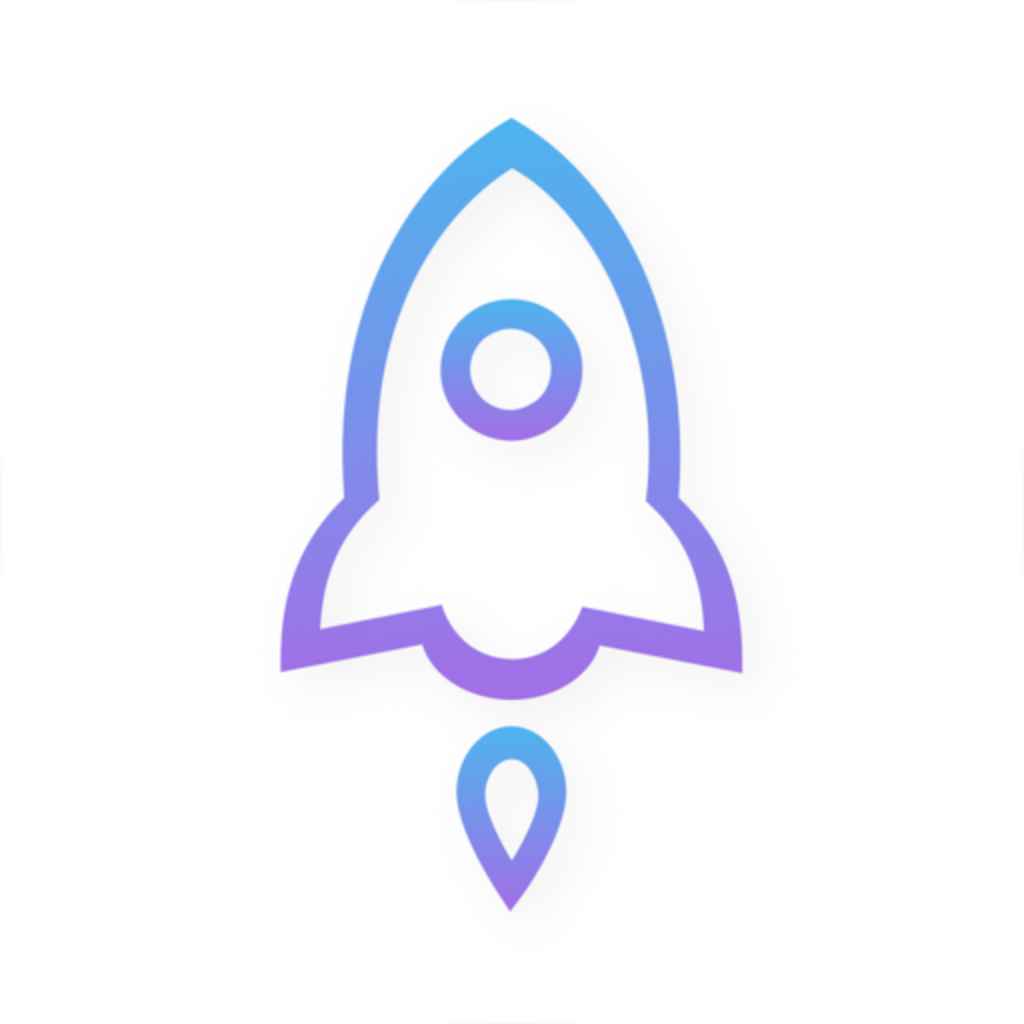
App identity
- App name
- Shadowrocket
- Developer
- Shadow Launch Technology Limited
- App ID
- 932747118
Check all three. Don’t use the icon or an informal name as a substitute for verifying the app’s identity.
Before you buy
- Device
- iPhone or iPad
- System requirements
- Refer to the App Store listing
- Account
- Make sure the App Store is signed in to the account you’ll use to make the purchase
Once you’ve verified the app, check compatibility, purchase status, and payment details.
To verify the product URL, check the App Store product page’s share link. It should contain id932747118. The iPhone and iPad link in the site’s download guide also points to this product page. Extra sharing parameters in the URL don’t change the app ID; check the app itself, not the sharing parameters.
3. Pay and install in four steps
Authorizing a purchase and downloading the app are separate steps. The first completes the transaction; the second installs the app on your device. If the download pauses after payment, you don’t need to buy the app again. Check the product page button and your account’s purchase history before deciding what to do next.
-
Check your account
Open the App Store, tap your account avatar in the top-right corner, and verify which account is signed in. Make sure its payment method and billing details are valid, then return to the Shadowrocket product page.
-
Verify the app
In the App Store, tap Search and enter Shadowrocket. Open the product page, verify the developer, Shadow Launch Technology Limited, and app ID 932747118, then check device compatibility.
-
Confirm the payment
Tap the price button on the product page. Review the app and amount shown by the system, then authenticate as prompted using the side button, Face ID, Touch ID, or your account password. Unlocking your device does not mean the purchase has gone through.
-
Wait for installation
Check that the button shows download progress. Once installation finishes, it should display Open. Tap Open or launch Shadowrocket from your Home Screen to confirm it opens, then import your configuration.
If a download is taking a while, check your available storage and make sure your network can access the App Store. Then check for other downloads in progress. Canceling a download or deleting the app doesn’t cancel a completed transaction. To confirm the transaction status, check your App Store purchase history and system billing details.
4. Redownload a past purchase or set up a replacement device
If you’ve purchased the app before but it’s no longer on your device, open the App Store using the original purchasing account. Your purchase history—not whether the old device still has the app icon—is what matters. If the app is still available, your purchase history is accessible, and your device is compatible, you’ll usually see a cloud download button instead of a price.
On recent systems, go to App Store → account avatar → Apps → My Apps. Some systems show Purchased instead. Menu names vary by system version and interface language. Open your purchased apps list and search for Shadowrocket. If it’s not there, check that you’re signed in to the right account before paying again.
Redownload options: reinstall on your current device or install on a new one
Reinstall on your current device
- Check that the App Store is signed in to the account used for the original purchase.
- Open your purchased apps list and search for Shadowrocket.
- Tap the cloud download button. After installation, make sure the app opens.
- Don’t assume local configurations you didn’t save before deleting the app will return when you redownload it.
New iPhone or iPad
- Sign in to the App Store with the account used for the original purchase.
- First, check that the new device meets the requirements on the product page.
- Redownload the app from your purchased apps list and open it.
- Reimport a configuration or subscription you saved, then check which item is selected.
Your purchase history lets you get the app; transferring configurations is a separate step. Redownloading does not restore your configuration automatically.
If the product page still shows a price, you may be signed in to a different account, or the previous purchase may not have been confirmed. Check your purchase history, order details, and current sign-in status first. Don’t assume an app previously installed on this device is in the current account’s purchase history.
5. Check Home after installation, then review Global Routing
Opening the app confirms that installation is complete; it doesn’t mean you have a working connection. Home is where you view and select connection configurations. Config is for managing configuration files, and Settings contains app preferences. When you first connect, the system may ask to add a VPN configuration. Confirm that the request comes from the Shadowrocket app you just opened, then follow the prompt.
If you already have a subscription, tap + in the top-right corner of Home, select Subscribe under Type, paste your complete link, and save it. Then update the subscription. Verify the link’s source before adding it, and don’t share the full address if it contains credentials. A successful subscription update doesn’t guarantee that the server settings or your current network will work; check what was imported.
Global Routing → Config
RecommendedTraffic handled by the app follows the rules and policies in the currently selected Config file. The route depends on the configuration; Config does not always mean “some traffic through a proxy, some direct.”
Best for: using an imported and verified rule configuration.
Global Routing → Proxy
Routes traffic handled by the app through a proxy. Use this mode to compare with Config. It can’t supply missing server details or guarantee that the server is reachable.
Best for: temporarily distinguishing rule selection issues from proxy connection issues when you already have a connection configuration.
Global Routing → Direct
Connects traffic handled by the app directly. If a request you expect to go through a proxy is using Direct, correct the mode before investigating the connection.
Best for: checking how the current network behaves on a direct connection.
You don’t need to enable automatic connections to purchase and install the app. If you need connections to start automatically, check the conditions under Settings → On Demand. On Demand has no bearing on payment, downloads, or purchase history. Test your configuration manually first to avoid mistaking an automatic connection condition for an installation problem.
6. Search, payment, and download FAQs
Can’t find Shadowrocket in App Store search? Check this first
Check the spelling, then open the iPhone and iPad product page from the site’s download guide. If the product page shows a region or compatibility restriction, check your current store region and device system against the details shown. Search ranking or missing results alone don’t indicate the app’s availability.
I authorized the payment, but why isn’t the app installed yet?
Return to the product page and check for download progress, a cloud icon, or Open. Confirm the transaction in your account’s purchase history. If the download is stalled, check your network and available storage. If billing is pending, resolve the payment notice instead of trying to buy again.
Why does it still show a price if I bought it before?
Open your App Store account page and confirm you’re signed in to the account used for the original purchase. Then check your purchased apps list and order history. Remembering that the app was installed on an old device isn’t a substitute for purchase history. Don’t confirm another payment until you’ve checked.
Home is empty after installation. Does that mean my purchase failed?
An empty Home screen and a successful purchase are separate issues. First make sure the app opens, then import a configuration or subscription you already have. Buying the app doesn’t include a service plan, and payment won’t automatically fill in a server address, port, or authentication details.
Will my subscription reappear automatically when I redownload the app on a new device?
Don’t assume it will just because you redownloaded the app. After installation, check the contents of Home and Config. If your configuration isn’t there, reimport a configuration file or subscription you saved beforehand, then check the selected connection and routing mode.
Download Shadowrocket for every platform and get started
The iPhone and iPad version costs $2.99 as a one-time App Store purchase. The Mac (Apple silicon and Intel), Windows, Android, and Linux versions are free. For iPhone and iPad system requirements, refer to the App Store listing. Get the app for your device, then follow the guide to import a configuration you already have.