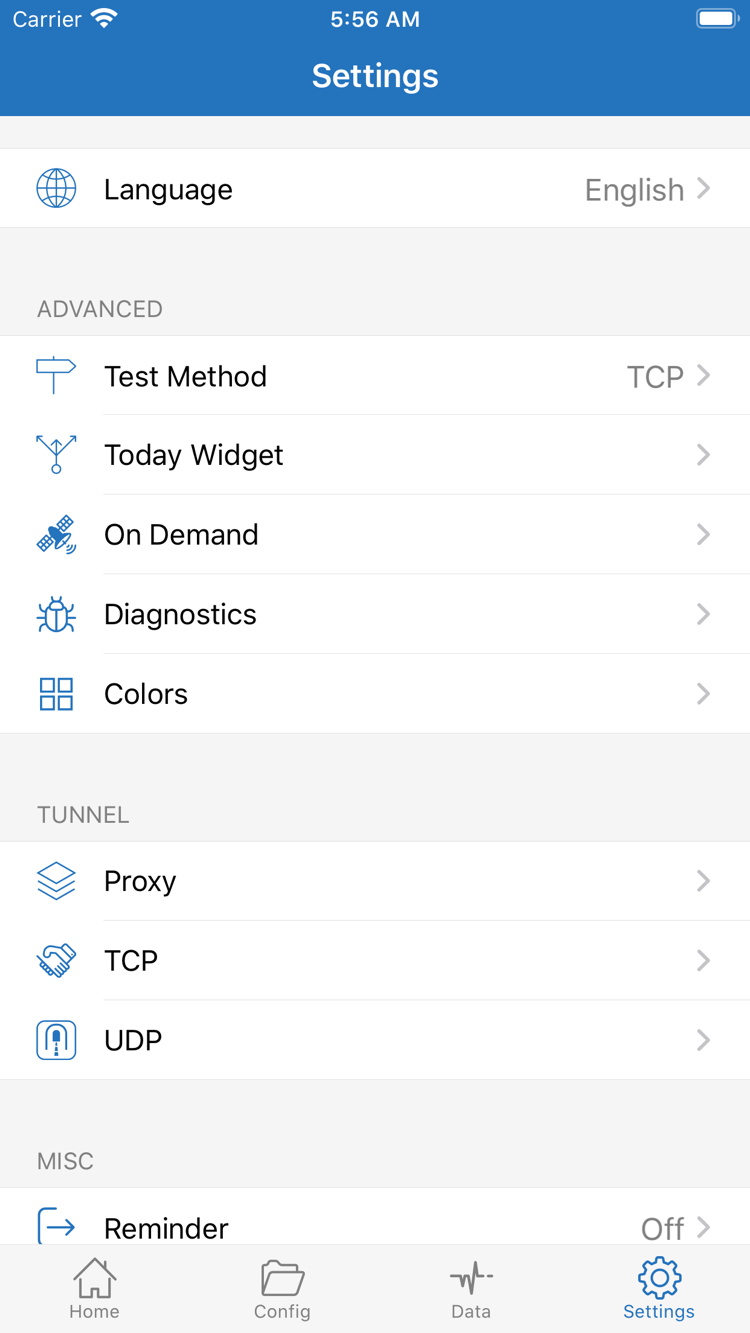
Connection status
A switch that stays on indicates a change in local connection status; verify it with an actual request as well.
Official Manual · First-Time Setup
Using the iPhone / iPad interface, follow “Import → Mode → Connect → Test → Troubleshoot” to complete a basic setup. Check the result at each step before moving on.
Start by adding a profileSetup sequence
Import the details you already have
First identify what you have: a subscription link, a server share link, or server parameters listed individually. A subscription link retrieves a group of entries; manual parameters describe one server. The entry points are similar, but the two types of information are not interchangeable. Open Shadowrocket and find Add Server near the SERVER group on Home, or use the add option on the page. Check Type first; do not paste a complete subscription link into Host.
In Add Server, open Type, choose Subscribe, and enter the complete subscription link you already have in the corresponding URL field. Keep any parameters after the question mark when copying. Do not include quotation marks, spaces, or line breaks from a chat message. If the link has been truncated, copy it again from its original source instead of trying to reconstruct it. Notes are for identifying the source; use a clear name, not authentication details.
Save, return to Home, and update the subscription. Wait for the list to load. After a successful retrieval, you should see actual server entries, not just a subscription name. If only the name appears without any entries, first confirm that the update completed, then follow Troubleshooting. Subscription updates may add or remove entries, so check that the selected server is still available afterward.
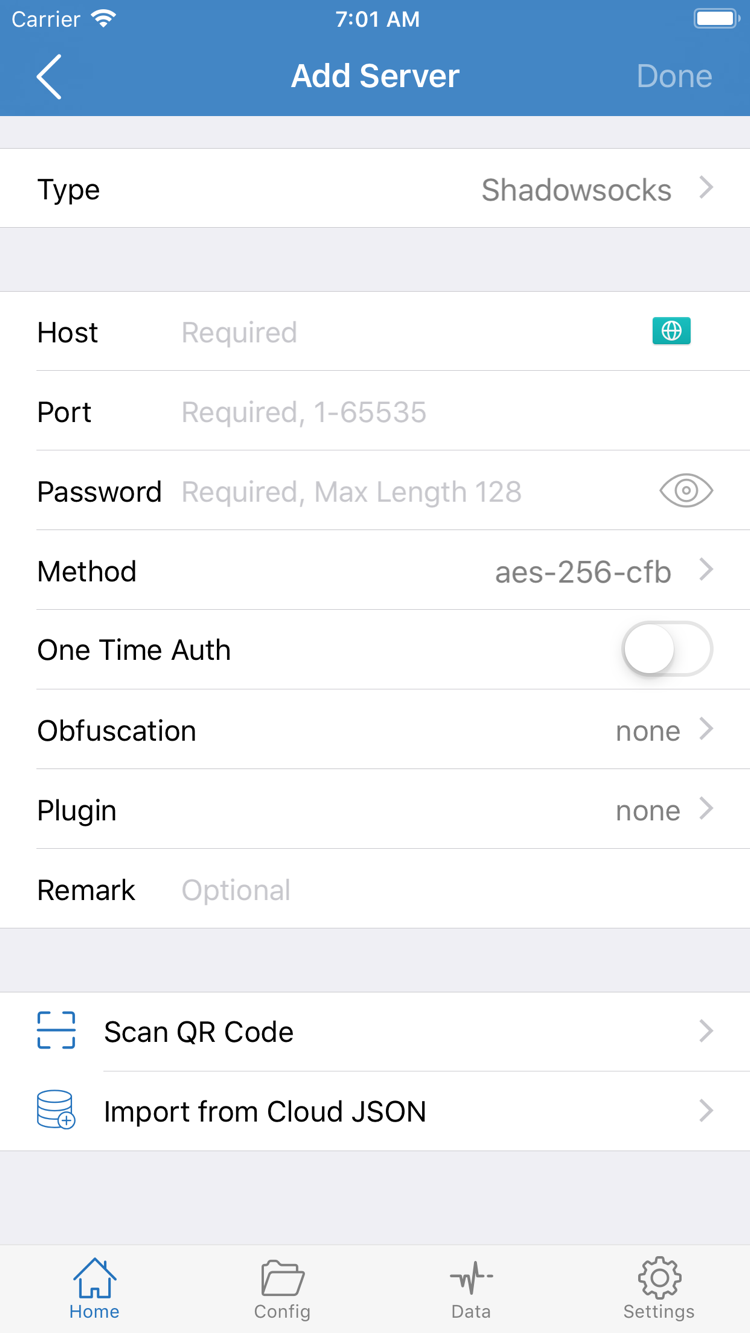
When adding a server manually, select the Type that matches the details, such as Shadowsocks, VMess, VLESS, or Trojan, then check Host, Port, and the authentication fields shown for that type. The official screenshot shows one combination of fields; not every protocol displays both Password and Method, and parameters for one protocol cannot be copied directly to another. For TLS, transport, and other optional fields, follow the server details you have. Do not change fields you are unsure about.
If you have a QR code, import it with Scan QR Code, then verify the Type and destination address. Import from Cloud JSON is a separate import option; use it only if you already have compatible details, not as a general-purpose subscription field. Use the appropriate import method for server share links; do not split them into guessed parameters. Before saving, check the port, authentication details, and spaces. Then return to Home and select the entry you intend to use.
Step complete when: Home shows a selectable server and you can identify which entry is selected. Do not turn on the connection switch yet; first decide whether to route requests by rules or handle them uniformly. Subscription links may contain access credentials, so hide the complete link and authentication fields before sharing screenshots or diagnostic records.
Choose how requests are handled
Return to Home and open Global Routing. The three modes are Config / Proxy / Direct. They determine how requests are processed; they are not server protocols. Selecting a server answers “which existing connection details to use”; choosing Global Routing answers “how to handle requests.” Check both separately.
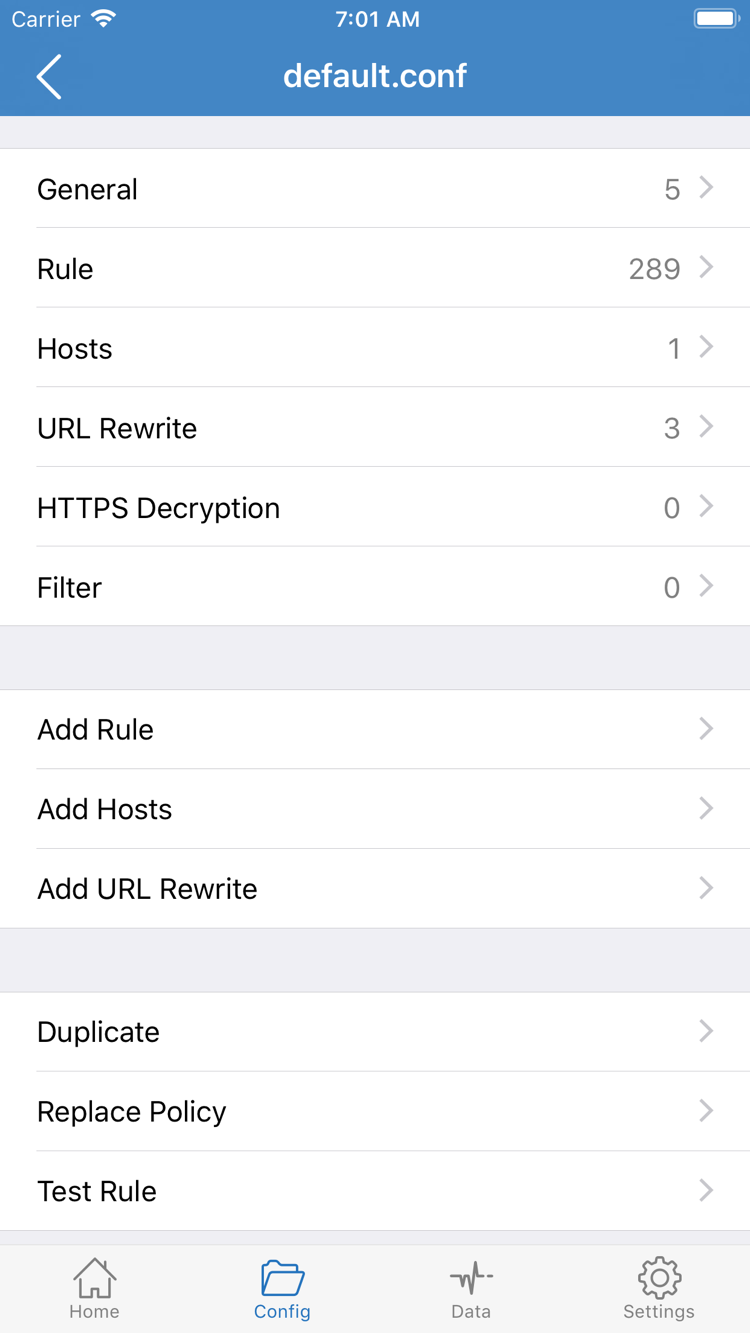
To choose a route based on rules such as domains or IP addresses, select Config, then check the active profile in Config. Importing a subscription usually maintains the server list; it does not mean that a rule profile is also ready. Open the profile in use and check its General and Rule sections. If you have multiple profiles, confirm which one is selected before editing, so you do not make changes to a different file and wonder why nothing changed.
Rule entries are matched in order; the first matching rule determines the next policy. FINAL handles requests that do not match earlier rules. If a rule references PROXY or a policy group, check that the name is defined in the current profile and has a usable selection. The following line illustrates the structure only; it is not a complete configuration to replace your current file:
DOMAIN-SUFFIX,example.com,PROXYHere, DOMAIN-SUFFIX is the rule keyword, example.com is a sample domain, and PROXY is a policy reference. Save a copy of the current profile before adding rules. Do not change Hosts, URL Rewrite, or HTTPS Decryption just to complete your first connection. For initial setup, confirm that the existing profile is active and its rule references are present. See the glossary for rule keyword definitions, or the troubleshooting guide for complex matching issues.
Proxy is useful for briefly checking whether the selected server can handle an actual request. Direct sends requests straight to their destination and can help compare local network behavior. Switching modes will not fix an incorrect server password or fill in missing configuration. If Proxy works but Config does not, check the rules and policy references before reimporting all your servers.
Step complete when: You can name the current mode and identify the profile used by Config. After testing, return to the mode you plan to use so a temporary Proxy or Direct selection is not left in place by mistake.
Connect after confirming your selections
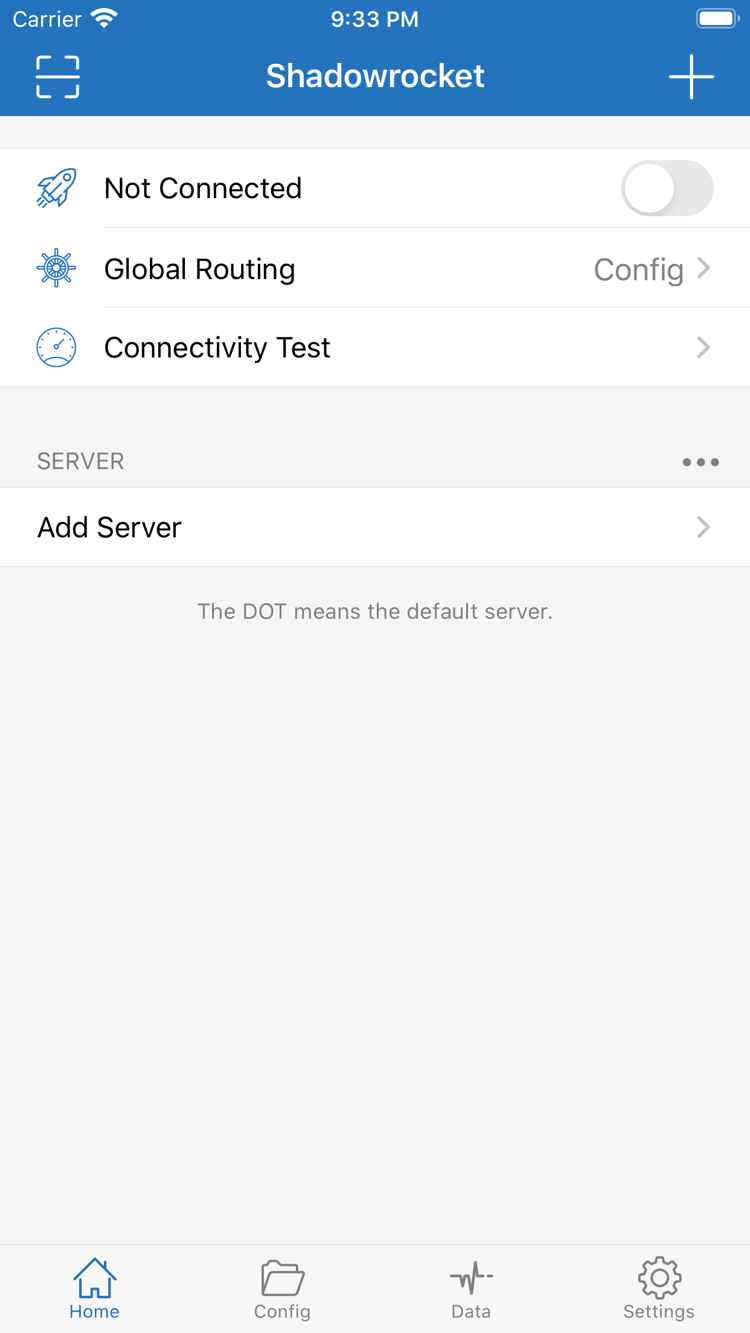
Return to Home and check the selected entry in the SERVER group, then check Global Routing. For your first test, use one server throughout the process. Do not switch servers before each test, or you will not know whether a change came from the server, mode, or local network. If you have just updated a subscription, check the selected entry again, especially if entries have similar names or one was removed by the update.
When the top of the screen shows Not Connected, turn on the connection switch. On the first connection, the system may ask to allow adding a VPN configuration and request your device passcode or biometric authentication. Confirm the prompt was initiated by the Shadowrocket app you just opened, then follow the system instructions. If you canceled authorization, return to the app and try again. Do not repeatedly tap the switch while the system confirmation is still pending.
Wait for the status to update after authorization. The switch being on and the app showing a changed connection status indicate that a local tunnel has attempted to connect. This does not mean the remote server can reach every destination or that every rule in Config is correct. Once the status changes, keep the current server and mode, then run the next test. If the switch immediately turns off again, note the system prompt instead of continuing to edit Rule.
Other active VPN connections or network extensions on the device may affect this connection. End any VPN session you do not need, then run a repeatable test in Shadowrocket. If a managed device restricts adding VPN configurations, check the device management policy or contact its administrator. Do not repeatedly delete configuration profiles whose purpose you do not know.
To disconnect manually, return to Home and turn off the switch. If it reconnects automatically, check whether On Demand is enabled in Settings and review its conditions. Understand what triggers the automatic connection before deciding whether to disable the feature temporarily. Step complete when: The switch stays on and you have noted the current server and Global Routing mode. Next, verify with an actual request.
Separate test results from actual use
After connecting, run Connectivity Test from Home and check whether the server you plan to use completes the test with the current test method. The result only indicates connectivity under those test conditions. It is not a bandwidth measurement and cannot prove that every website, protocol, or app will work. If several entries have similar names, make sure the result you are viewing belongs to the selected entry, not another one in the list.
Next, open a browser and make a new request to a site you normally use where the result is clear. Do not rely only on a page that was already loaded or on local cache; refresh it and note the specific behavior, such as loading successfully, taking a long time, or showing a name resolution error. Then check another app you use to distinguish an issue with one app from a failure affecting all requests. A page displaying content alone does not prove that it went through a proxy; Config may route that request through DIRECT.
To verify rule-based routing, first determine which rule should match the destination, then check the request logs or diagnostic information available in the app. The domain, matching rule, and selected policy are more useful than the system VPN indicator alone. A destination may redirect to another domain, so the initial address and later requests may not match the same rule. In that case, note the domain actually requested instead of adding many broad rules at once.
If a request fails in Config, keep the same server and briefly switch to Proxy to repeat the same request. If Proxy works but Config does not, check the rules, policy group selection, or related DNS settings. If Direct works but Proxy does not, first check the server connection details and remote availability. Change only the mode when comparing results; do not also switch networks, servers, or DNS, or the results will be hard to interpret.
Step complete when: You have run at least one server test and made at least one real request, and understand what each result indicates. Restore the Global Routing mode you plan to use. If the results are still unexpected, continue to the next step with the specific failure point; there is no need to clear all settings and start over.
A switch that stays on indicates a change in local connection status; verify it with an actual request as well.
Connectivity Test checks connectivity under its test conditions. Check rule matches and policies separately to verify routing.
Start with the earliest point of failure
Follow this troubleshooting order: “Can the subscription be retrieved? → Can the server be tested? → Can the VPN connection stay on? → Can an actual request complete?” Resolve the earliest failure before moving on. In Settings, you can find Test Method, On Demand, and Diagnostics. This page covers checks for a first connection; it does not require changing every Proxy, TCP, or UDP option.
First distinguish a failed download from a successful download that contains no entries. If the download fails, check whether your local network can access ordinary pages, whether the subscription link is complete, and whether the existing credentials are still valid. If the download completes but the list is empty, confirm that the link returns compatible subscription content rather than a login page or error message. Do not post the complete link on a public page. When checking with the source of the details, share only the necessary error message and screenshots with credentials hidden.
Check Test Method in Settings to understand the current test conditions, then return to Home and retest the same entry. A timeout may be related to the test method, server address, port, or current network. One result alone does not mean that all configuration has failed. For a manually added entry, recheck Type, Host, Port, and authentication fields. For a subscription entry, update it first and confirm the selected entry has not changed. If you test on another local network, record that change separately.
If the switch turns off immediately, first check system VPN authorization, other VPN sessions, and device management restrictions. If the switch stays on but requests fail, compare Config, Proxy, and Direct as described above, then decide whether to check the server, rules, or DNS. Do not change every DNS option just because a domain will not open. First check whether the error affects only domain requests and whether a rule or policy reference is inconsistent.
If the connection comes back after you turn off the switch, check the On Demand conditions. If only one app has an issue, first confirm whether it has established a new connection instead of reusing an existing session. To troubleshoot further, open Diagnostics and record what you did, the selected mode, and the error message when the issue occurred. Diagnostic records may contain destination domains, server addresses, or authentication information; check each item and hide sensitive content before sharing.
Change one setting at a time and retest the same destination. If it does not help, restore the original value to avoid accumulating temporary changes that cause new problems. After resolving the issue, keep a copy of the working profile, then add advanced features one by one. For more symptom-based steps, see the troubleshooting guide; for purchase and restore questions, see the FAQ; and for protocol and rule terms, see the glossary. You can finish your initial setup here; there is no need to configure every feature at once.